ClapClip Team · · 6 min read
Written by the ClapClip team, not an independent review. Questions or corrections? Let us know
The classic version of this gift is a grandfather's face in a black-and-white dance number, or the couple dropped into the film they watched on their first date. It lands because it is personal, and it is personal because it uses family photos. That is also the reason to make it on your own computer: the photos and the finished clip never have to sit on someone else's server.
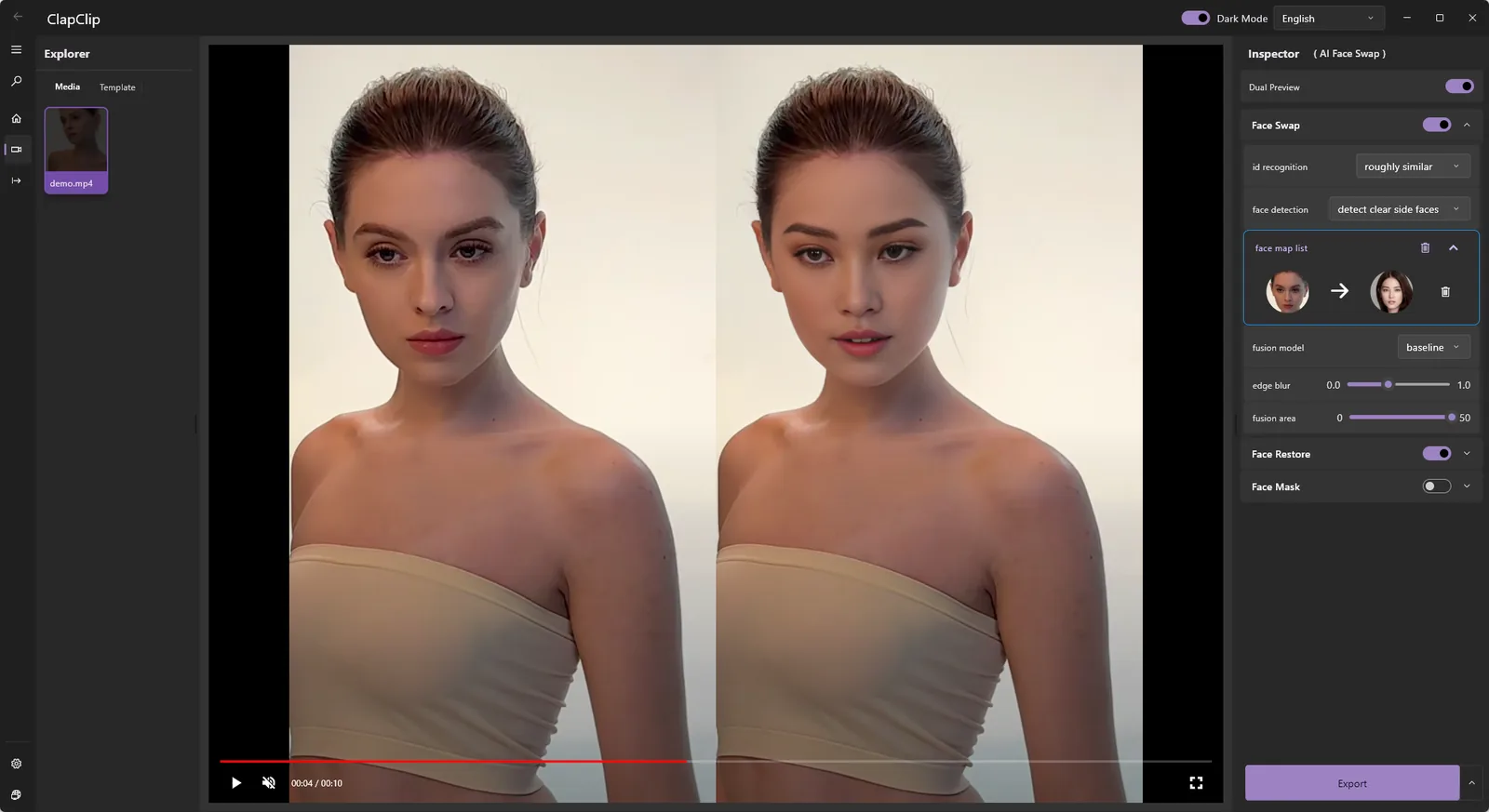
This guide uses ClapClip for Windows, which swaps faces in video locally on a Windows 10 or 11 PC. The online tool on this site is free and needs no account, but it handles still photos only.
Key takeaways
- Short beats long. A 20-second scene the person will recognize is a better gift than three minutes of a whole number, and it is far easier to get right.
- One source photo, matched to the scene. The photo's angle and light decide the result more than any setting does.
- Check the hard frames in the live preview. A head turn, a laugh, a hand near the face: scrub to those and look before you render.
- Export a test segment first. The installer is free and the preview is free; exporting requires an in-app purchase, so export the hard ten seconds before the whole clip.
Which scene works?
Pick for the face, not for the story. The scene the recipient loves may be a wide shot in the rain at night, which is the worst possible material. What you want:
- The face fills a reasonable part of the frame and stays mostly front-on.
- The light is steady. A scene that cuts between a bright exterior and a dim interior is two problems, not one.
- Few things cross the face: no veil, no champagne glass raised in front of the mouth, no dramatic hair flip.
- Short. Twenty to forty seconds is plenty for a gift that will be replayed, not studied.
Keep the audio in mind too: the app keeps the original soundtrack, so a scene with a line everyone quotes is worth more than a silent one.
Rule: if the clip has a moment you are not sure about, cut a version that contains it and test that first.
Which photo of the person should you use?
Choose a photo where the person is looking roughly the way the actor looks in most of the scene, with eyes open, nothing covering the face, soft light and enough sharpness that skin and eyes have detail. A clear phone photo taken in daylight is usually better than an old scanned print, because the model needs texture to blend.
If the scene is a side profile, you need a photo with a similar turn; a straight-on passport-style photo will not stretch to fit. For a long scene with several angles, you can still use one photo, but choose it for the angle that appears most.
Rule: change the photo before you change settings. A matching angle fixes more than any slider.
Does anything get uploaded?
No. The Windows app processes photos and videos on your PC; the source photos and the clip are not uploaded for the desktop face-swap workflow. Installation, model downloads and updates need an internet connection, and the online tools on this site are separate services with their own privacy page.
For a gift that uses family photos, that is the point. You can also delete the project afterwards and the only copy that exists is the one you hand over.
How do you use the live preview?
Open the clip, choose the source photo and the face to replace, and watch the preview. It updates as you change the source photo or settings, so you are not rendering a file to find out whether a frame works.
Scrub, do not play. Go straight to the frames that usually break a swap:
- the first head turn,
- the biggest laugh or widest expression,
- any moment a hand, glass or hair passes the face,
- a light change if the scene has one.
If one of those frames fails, try a different source photo with a closer angle before touching anything else. If the whole scene fails, it is the wrong scene; pick another one rather than fighting it.
Rule: the preview is free to use for as long as you like. Spend time there, not in exports.
Export a test segment, then the full clip
The app installs for free and the preview costs nothing; exporting a clip requires an in-app purchase. So do not export the whole scene first. Export the ten seconds that contain the hardest frame, open it in a normal player at full screen, and look at the edges: hairline, jaw, neck, and the moment of the turn. If that passes, render the full clip with the same settings.
Processing time depends on the clip length, resolution, number of faces and your PC. The app uses NVIDIA, AMD and Intel GPUs through DirectML, and a dedicated GPU is recommended for the fastest render. There is no fixed clip-length limit in the app; disk space, resolution and export settings decide what you can process. For a gift, a short scene at the source resolution is the easy case.
How should you share it?
- Keep it private. A face swap of a family member made as a gift is a private thing; share it as a file or in a private message, not as a public post.
- Tell the recipient it is a swap. The reaction is the gift, and "wait, is that me?" works better when the answer is honest.
- Mind the film. The scene belongs to whoever made it. A private family gift is one thing; uploading it publicly is a question of the film's rights, not of the software.
- Ask first if the person is alive and would mind. Not everyone wants their face in a dance number, even a kind one.
Swap only faces of people who have agreed, label edited media as edited, and never use a swap to impersonate someone or to mislead people about real events.
Common problems
| What you see | Likely cause | What to do |
|---|---|---|
| The face looks pasted on or floats | Angle of the photo does not match the scene | Pick a photo with the same turn of the head |
| Soft, plastic-looking skin | Blurry, filtered or very small source photo | Use a sharper, unedited photo |
| The swap flickers at a turn | Profile or fast motion in that section | Trim the scene before the turn, or choose a scene without it |
| An edge shows at the jaw or neck | Skin tone changes across the blend zone | Try a photo lit more like the scene |
| The render takes a long time | Long clip, high resolution, or integrated graphics | Shorten the scene; a dedicated GPU is recommended |
Related guides
- How to swap faces in a video with AI is the general step-by-step for the Windows app.
- How real-time face swap works explains what the live preview shows and why it saves renders.
Free download. Export requires a purchase inside the app.
Create with permission. Use media and faces you have rights to, and clearly disclose edited content.
Related guides
How to Swap Faces in a Video with AI: Step-by-Step
Swap a face in a video on Windows: choose a clip, lock one source photo, inspect hard frames, export a short segment, then render the full file.
How Does Real-Time Face Swap Work? A Pipeline Guide
Follow a real-time face swap from decode to detection, alignment, generation and blending, and see where this site's browser photo tool stops.