GIF Face Swap
Free GIF Face Swap Online
Upload an animated GIF and one clear photo of a face. The tool swaps the main person's face frame by frame and gives you back a GIF with the same size, frame count and timing. No account, no watermark and no limit on the number of swaps.
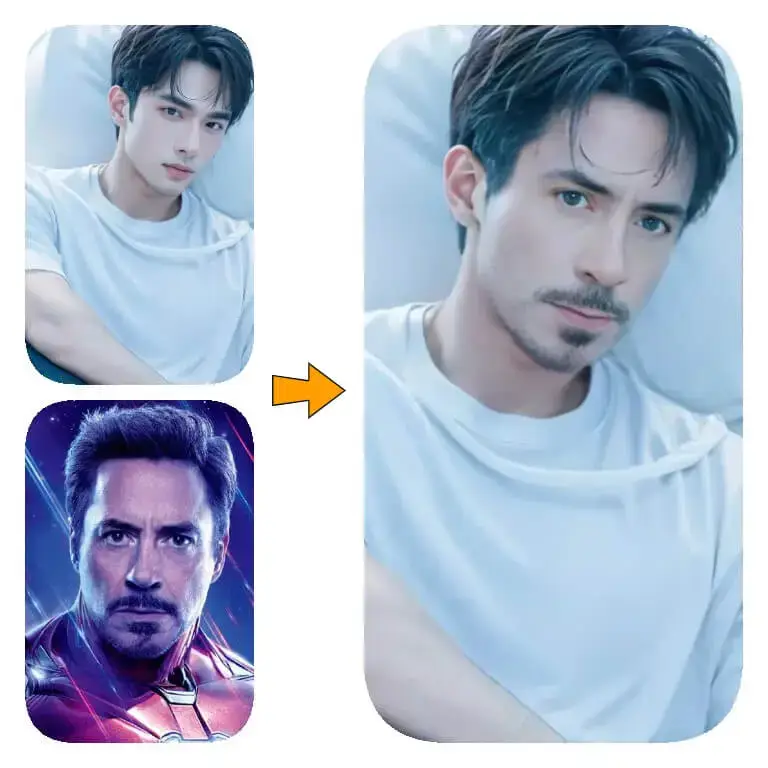
Batch face swaps for photos and videos
- Batch processing
- Real-time preview
- GPU acceleration
- Local & private
ClapClip for Windows keeps your files on your PC. No cloud uploads.
Add a GIF and a replacement face. Only the main person’s face changes; the animation stays a GIF.
Batch face swaps for photos and videos
- Batch processing
- Real-time preview
- GPU acceleration
- Local & private
ClapClip for Windows keeps your files on your PC. No cloud uploads.
How to swap a face in a GIF
It works in Safari, Chrome, Edge or Firefox on a phone, tablet or computer. There is nothing to install.
Stay on the GIF Face Swap tab
The GIF tab is already selected on this page. On the homepage, switch from Photo Face Swap to GIF Face Swap first: the photo tab accepts only JPG, PNG and WebP files.
Upload the GIF
Choose an animated GIF up to 2 MiB, no wider or taller than 1024 pixels, with at most 300 frames and 30 seconds of playback. A GIF with a single frame is rejected; use the photo tab for still images.
Add the new face
Choose a still JPG, PNG or WebP photo of the face you want to use. Your browser finds that face and crops it to a small aligned square before anything is sent.
Pick a model and start
Balanced is selected by default. Start the swap and keep the tab open while the GIF is processed on the server. If the free service is busy, your task waits for a worker first.
Download the GIF
When the result is ready it plays in the page as an animation. Download it as a .gif file and share it wherever GIFs are accepted.
How GIF face swap works
A GIF is a series of still frames shown one after another. To replace a face, every frame has to be edited, and the same person has to be followed from frame to frame so that the new face does not jump to someone else halfway through the loop.
faceswap.free uploads your whole GIF together with the aligned crop of the new face. On the server, a face detector looks for the first frame that contains a usable face and takes the largest face in it as the main person. Its facial features become a fixed reference. In every later frame, the faces found are compared with that reference, and the one that clearly matches is swapped with the model you chose and blended back into the full frame.
The frames are then written into a new animated GIF with the original width and height, the same number of frames, the same frame delays and the same loop setting. Nothing is resized or dropped. Each frame is stored with a palette of up to 255 colours, as GIFs require, so subtle gradients can look slightly different from the original.
Which face gets swapped?
One person per GIF: the main person, meaning the largest face in the first frame that shows one. The tool never swaps every face in the scene and never switches to whoever happens to be largest later on.
When the main person cannot be matched with confidence in a frame, for example because they turn away, move fast, are covered by a hand or stand next to a very similar face, that frame is kept unchanged rather than guessed. Faces smaller than about 24 pixels are ignored. If not a single frame can be swapped, the task fails and you can try a different GIF.
To control who is swapped, crop or trim the GIF so the person you want is the largest face in its opening frames.
GIF limits
File size: 2 MiB
This is the upload limit for the original GIF. Larger files are rejected in your browser before anything is sent.
Size: 1024 pixels
Neither side may be longer than 1024 pixels, and a single frame may hold at most about one megapixel.
Frames and length: 2 to 300 frames, 30 seconds
The animation must have at least two frames and may play for up to 30 seconds. Each frame can be shown for up to 10 seconds; very short delays of 0 or 10 milliseconds play as 100 milliseconds, as most browsers do.
Total pixels: 16 million
Width × height × frame count must stay within 16 million pixels. A 480 × 270 GIF can therefore have about 120 frames, and a 320 × 160 GIF can use the full 300.
Real GIFs only
The file must be a genuine GIF87a or GIF89a. Animated WebP, APNG and video files are not accepted, and renaming a file does not change what it is.
Still source face
The new face comes from a still JPG, PNG or WebP photo. An animated source is not supported.
How to make a GIF fit
If your GIF is rejected, shrink it in any GIF editor and try again. These changes help the most:
Lower the resolution
Scaling a 1000-pixel-wide GIF down to 480 pixels cuts its pixel count by roughly three quarters and usually its file size too.
Trim the clip
Keep only the part of the loop you need. Fewer frames mean a smaller file and a faster swap.
Drop every other frame
Halving the frame count and doubling each frame's delay keeps the timing similar at half the size.
Reduce the colours
A smaller palette, such as 128 colours, often makes the file noticeably smaller without an obvious change.
Tips for a better result
Pick a clear main face
GIFs where one person faces the camera and fills a good part of the frame give the most consistent result.
Match the head angle
A source photo turned roughly the same way as the face in the GIF blends more naturally than a straight-on portrait placed onto a profile.
Avoid heavy blur
Fast movement, motion blur and hands across the face make frames harder to match; those frames may stay unchanged.
Try another model
If the face looks soft or wrong, run the same GIF again with Robust or Accurate and compare the results.
What people make with it
Reaction GIFs with your own face, birthday and greeting GIFs for friends, a dance or film moment starring a friend who is in on the joke, GIFs for a team chat, and quick previews of a costume or character in motion.
Whatever you make, use GIFs you are allowed to edit and the face of someone who has agreed. Do not use face swap to deceive, harass or impersonate anyone, or to make sexual or intimate images of a real person, and say that a GIF is edited when you share it.
Privacy: what happens to your GIF
The photo tool uploads only small face crops, but the GIF tool has to upload the whole GIF because every frame is processed on the server. The new face is still cropped and aligned in your browser and sent as a small square.
Uploads and results are processed by our servers and authorized GPU workers and may be stored for processing and recovery. GIF results cannot be posted to the public Explore gallery. To ask for deletion, email support@clapclip.net.
Read the privacy policyFree, without an account or a watermark
GIF face swaps are free, with no sign-up and no limit on the number of swaps; a short per-minute limit only stops automated abuse. The GIF you download carries no watermark. Each task has a time limit of about two and a half minutes, including any wait in the queue, so very long or large GIFs may need to be shrunk first.
Swap a face in a photo insteadGIFs, not video files
The online tool does not accept MP4, MOV or other video files. You can turn a short clip into a GIF within the limits above, or use ClapClip for Windows 10 and 11, which swaps faces in videos, long recordings and batches on your PC. The app is free to download, and exporting requires an in-app purchase.
Offline face swap software for PCGIF face swap FAQ
Photo Face SwapIs GIF face swap free?
Yes. It is free with no sign-up and no limit on the number of swaps. A short per-minute limit only stops automated abuse.
Does the GIF get a watermark?
No. The GIF you download has no watermark. (Results from the Photo Face Swap tab carry a small ClapClip mark.)
How big can my GIF be?
Up to 2 MiB, 1024 pixels on the longest side, 2 to 300 frames and 30 seconds, with no more than 16 million pixels across all frames.
Whose face is swapped when there are several people?
Only the main person: the largest face in the first frame that shows one, followed through the animation by facial similarity. Everyone else stays as they are.
Why do some frames still show the original face?
Frames where the main person could not be matched with confidence, for example during a fast turn, heavy blur, a hand over the face or next to a very similar face, are left unchanged on purpose.
Why did my GIF fail?
Either the file broke one of the limits, or no frame contained a usable face to swap. Try a GIF where one clear face fills more of the frame, or shrink it to fit the limits.
Can I use an MP4 or another video?
No. Only real animated GIFs are accepted. Convert a short clip to a GIF within the limits first, or use ClapClip for Windows for video files.
Are animated WebP and APNG files supported?
No. The file you edit must be a GIF87a or GIF89a, and the new face must come from a still JPG, PNG or WebP photo.
Does the result keep the original speed and loop?
Yes. The new GIF keeps the width and height, the number of frames, the frame delays and the loop setting. Only delays of 0 or 10 milliseconds are played as 100 milliseconds.
How long does it take?
It depends on the GIF's size and frame count and on how busy the free service is. Each task has about two and a half minutes including any queue time; if it runs out, use a smaller GIF or try again later.
Is my GIF uploaded?
Yes. The whole GIF is uploaded so each frame can be processed, while the new face is sent as an aligned crop. Uploads and results may be stored for processing and recovery, and you can ask support to delete them.
Can I post the result to the Explore gallery?
Not yet. GIF results can be downloaded, but posting them to Explore is not available.
Does it work on my phone?
Yes. Use Safari on an iPhone or Chrome on Android, upload a GIF from your files or gallery and download the result. There is no app to install.