ClapClip Team · · 6 min read
Written by the ClapClip team, not an independent review. Questions or corrections? Let us know
Most "face swap" ideas on a short-video channel are really still-image ideas: the skit poster with the creator's face on a famous painting, the reaction cover, the "me as the villain" thumbnail. A still is faster to make, easier to judge and free to redo. Only the clip itself needs a video swap, and that is a different tool.
The online photo tool on this site is free, needs no account and has no daily swap count. It takes JPG, PNG or WebP up to 20 MB and offers four models. This guide is about getting a usable still out of it quickly, and about knowing when to stop and open ClapClip for Windows instead.
Key takeaways
- Thumbnails are stills. Make them in the browser; keep the desktop app for the clip.
- Choose the model by the target photo. Front-on and well lit:
inswapper_128. Angled or harshly lit:hyperswap_256_a. In a hurry:hyperswap_256_b. Nothing fits:hyperswap_256_c. - Judge at the size it will be shown. A thumbnail is seen small; check it small, then check the edges large.
- Label it. Platforms have rules about edited media; a swapped thumbnail is edited media.
Which image should be the target?
The target is the photo that keeps its scene; your face goes onto it. For a thumbnail that means the painting, the movie still, the stock photo or the frame from your own video. The best targets have a clearly visible face at a size that fills a good part of the frame, with even light and nothing crossing the face.
A frame grabbed from your own footage is often the best target of all: the light, the camera and the framing already match the video the thumbnail sits on.
Rule: if the face in the target is smaller than a thumb at normal zoom, crop the target tighter before you upload.
Which photo of your face?
The same rules as any swap: eyes open, nothing covering the face, soft light, enough resolution that skin and eyes are sharp, and an angle that matches the target. A selfie taken for the purpose, looking the way the target looks, beats a profile picture every time.
Keep three or four of these on hand at different angles. Reusing the same source photo across a series also keeps the "character" consistent from thumbnail to thumbnail.
Which model for which thumbnail?
| Thumbnail type | Target photo | Start with |
|---|---|---|
| Reaction cover, "me as" meme | Front-facing, evenly lit portrait or painting | inswapper_128 — the starting option for clear, front-facing photos |
| Dramatic movie still, concert or stage shot | Three-quarter angle, strong shadows, colored light | hyperswap_256_a — handles wider angles and harder lighting |
| A batch of similar covers for a series | Ordinary photos, nothing extreme | hyperswap_256_b — balanced detail, stability and speed |
| The first result looked wrong | Any | hyperswap_256_c — the variant to try when the others do not suit your photos |
Run two models on the same pair when you are unsure. The second run costs nothing and the comparison is more reliable than any description.
Rule: a waxy or floating face usually means the model does not suit the lighting; a stretched face usually means the angle of your photo does not match. Fix the angle with a different photo, fix the lighting with a different model.
How do you check it?
- Download the result and look at it at the size it will be shown: a phone-width thumbnail is a few hundred pixels wide. If it reads as you, it works; most swap artifacts vanish at that size.
- Then look at 100%. Check the hairline, the jaw, and anywhere glasses or a hand cross the face. A seam that is invisible in the feed can be very visible when the image is reused large, on a channel banner for example.
- Check the expression against the video. The swap keeps the target's expression; a smug painting under a title about crying makes a confusing cover.
Rule: judge small first, then large. A thumbnail that only works large is not a thumbnail.
When does the clip itself need a swap?
When the joke is in the motion: the villain turns to camera, the face delivers the line, the reaction is a double take. The browser tool accepts still images only, so this is where the Windows app comes in.
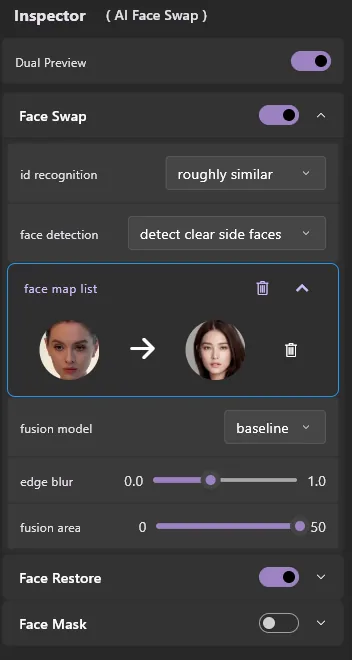
ClapClip for Windows processes video on your own PC. Its live preview updates as you adjust the source photo and settings, so you can scrub to the turn or the punchline frame and see whether the swap holds before rendering. It processes locally, uses NVIDIA, AMD and Intel GPUs through DirectML, and does not impose a fixed clip-length limit. The app downloads for free; exporting a clip requires an in-app purchase, which is why the sensible order is: preview the hard frame, export a short test, then the whole clip. The video face swap guide goes through that order step by step.
For a channel that posts a series, batch processing in the app lets you queue several clips with the same settings and run them locally, which matters more than speed on any single clip.
Rule: if the file has a timeline, it goes to the desktop app; everything else stays in the browser.
What about disclosure?
A swapped thumbnail is edited media. Most platforms ask creators to label realistic synthetic or altered content, and the rules differ by platform and change over time, so check the current policy where you post. Our own rules do not change: swap only faces of people who have agreed, label edited media as edited, and never use a swap to impersonate someone, mislead people about real events, or make sexual or humiliating images of anyone.
For your own face on a painting or a movie still, that usually comes down to a label and the rights of the image you used as the target.
Related guides
- Free online face swap models describes the four online models in more depth.
- How to swap faces in a video with AI is the workflow for the clip itself.
Create with permission. Use media and faces you have rights to, and clearly disclose edited content.
Related guides
Free Online Face Swap Models: Which One Should You Use?
Compare Baseline, Robust, Balanced and Accurate face swap models, their 128px and 256px crops, and the Edge blur and Fusion area settings.
How to Swap Faces in a Video with AI: Step-by-Step
Swap a face in a video on Windows: choose a clip, lock one source photo, inspect hard frames, export a short segment, then render the full file.