Check how a face swap looks on your footage
The source photo and the scene both affect the result. Use ClapClip's Windows preview to check the replacement face before exporting.
Free download. Export requires a purchase inside the app.
Choose a clear source face
Start with a sharp photo where the face is large enough to see clearly. If the result looks wrong, try a source photo with an angle and lighting closer to the scene.
Review more than the first frame
Play sections with head turns and changing expressions. Look around the jaw, eyes and mouth, and check moments where hair or a hand covers the face.
- Photo and video editing on Windows
- Preview before export
- Local desktop processing
Look closely before you export
Choose a clear face photo. In the preview, check where the person turns their head or covers their face. Look for uneven lighting and rough edges. Results and speed depend on the footage and your PC.
Free download. Export requires a purchase inside the app.
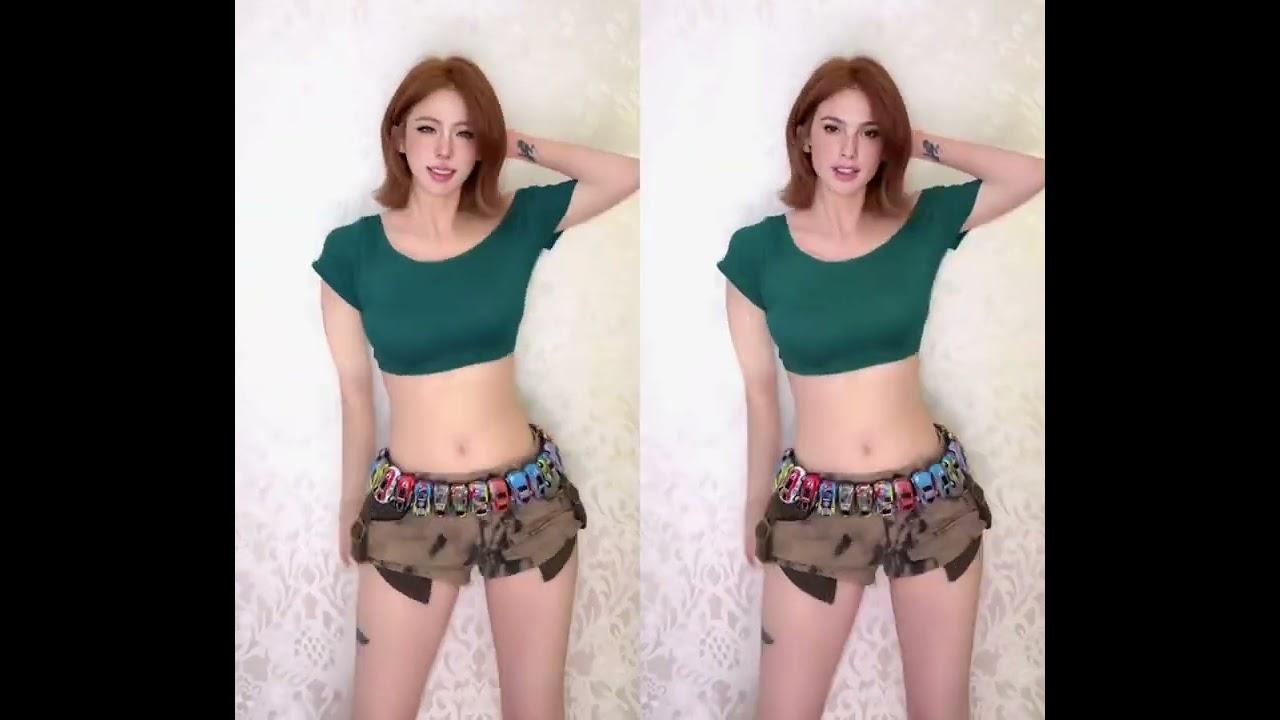
Video currently unavailable. This is a saved preview image, not a playable video.
Video currently unavailable. This is a saved preview image, not a playable video.
Watch the full before and afterFAQ
Will every clip look equally good?
No. Blur, small faces, occlusion and strong angle changes can affect the result. Test a representative section of your own footage.
Create with permission. Use media and faces you have rights to, and clearly disclose edited content.
What do you want to edit?
Video face swap
Change the face in a video with the Windows app.
See the resultsPhoto face swap
Open a photo in the Windows app and add the face you want to use.
See the resultsBatch processing
Use one face across several photos or videos in the Windows app.
See the resultsLocal processing
Process photos and videos on your Windows PC without uploading them.
See the resultsEdit videos on your Windows PC
Free download. Export requires a purchase inside the app.